Why use a global message view?
Selecting a station is useful when the next action concerns that station. It is less useful when the operator needs to keep an eye on the wider chat while moving through the user list.
KST4Contest therefore provides three message tabs whose contents do not depend on the currently selected station. They keep public activity, cluster traffic and visible coordination between other stations available as a compact contest overview.
Global Message Views are included from version 1.42 onwards.
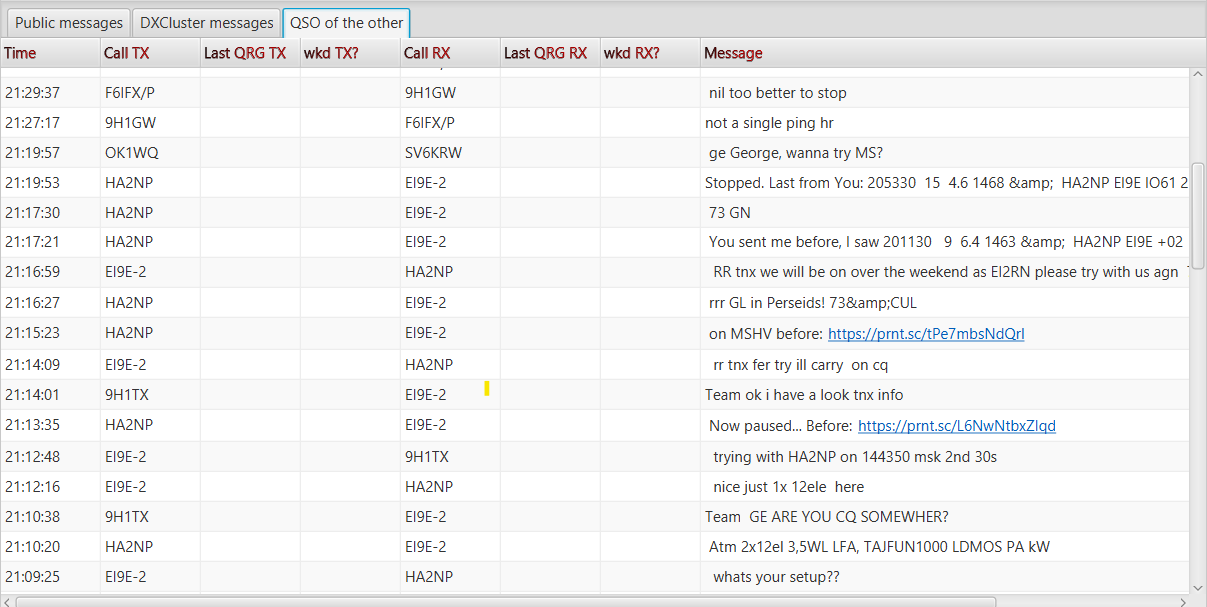
Three views, three purposes
| View | What it shows |
|---|---|
| Public messages | Public chat messages, including CQ calls and beacons |
| DXCluster messages | DX cluster messages received from the ON4KST server |
| QSO of the other | Directed chat messages between two chat logins other than the local station |
Public messages is selected by default. Changing the selected user-list row does not filter or replace the contents of any of these tabs.
Public messages
The public view is the continuous chat channel: CQ calls, beacons and other messages addressed to ALL. It provides the quickest indication of general activity without requiring a particular station to be selected first.
This makes it useful as a running contest work surface. The operator can follow new calls and general announcements while the selection remains on the station currently being handled.
DXCluster messages
The cluster view displays DX cluster traffic delivered through the ON4KST connection. Depending on the received data, it can show the reporting and reported stations, their locators, QRG, message text and the global Worked state of the reported station.
This is an incoming message view. It is not the Local DX Cluster Server, which sends derived KST4Contest spots to connected logging software.
QSO of the other
This view contains directed chat messages for which neither sender nor receiver is the local station. Messages addressed to ALL remain in Public messages instead.
Sender and receiver are shown separately, together with their most recently known QRGs, global Worked states, message text and chat category. That can reveal current sked arrangements, frequency exchanges and other coordination which would otherwise be distributed across the station-related views.
The label is deliberately compact. A directed chat message does not prove that an actual radio QSO has taken place. It may be a sked request, a frequency question or simply a private conversation between two chat logins.
Two other limits matter:
- Last QRG TX and Last QRG RX show the latest values currently known for the stations. They are not a historical record of the frequencies used when the displayed message was sent.
- wkd TX? and wkd RX? show global Worked state. They do not say that the station was worked on the QRG or band displayed next to it.
The separate monitor uses the same data
The existing Cluster & QSO of the other window remains available. It places received DX cluster messages above the directed messages between other stations.
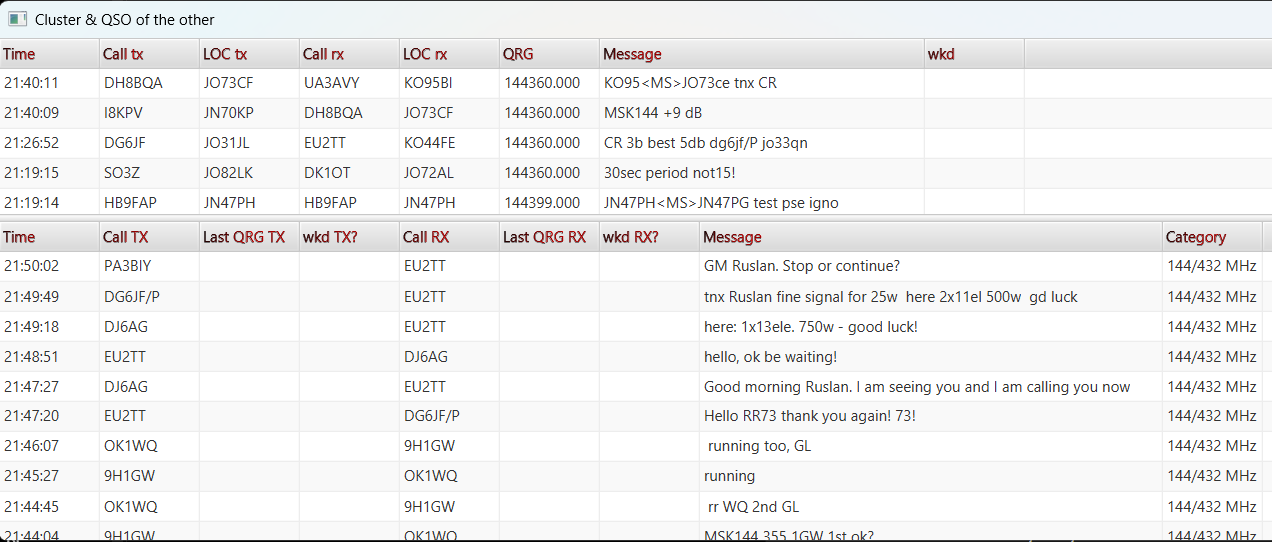
The main-window tabs and monitor window use the same underlying message stores. Opening the additional window does not create another ON4KST connection, receive a second copy of each message or maintain a separate history.
Shared, bounded and session-only
Public messages, the private-message table, the messages in Further Info and QSO of the other are different views of the same global chat-message store. The cluster tab and the cluster table in the separate monitor likewise share one DX-cluster-message store.
Both stores are bounded. The chat-message store is reduced from more than 30,000 entries to 25,000; the cluster-message store is reduced from more than 10,000 entries to 8,000. The oldest entries disappear from every view which uses the respective store.
The stores exist in memory only. After restarting KST4Contest, the views start empty and are rebuilt from newly received messages. They are tools for the current operating session, not a permanent chat archive.
In practical terms: Global Message Views keep the wider contest conversation visible while the operator continues working station by station. They show observed chat activity and coordination, not a logbook of what happened on the radio.
Read the detailed derivation and limitations in the manual.
Open the user-interface description of the tabs and monitor window.
Read how the bounded message stores are shared.